Example release · invented product
Example release: Fernway payment reminders
One release, written up once for four audiences. Below are the screenshots and notes that went in, and the video, slides and written copy that came out. Fernway is an invented invoicing app, so the product, its customers and everything on this page are made up for the example.
The interactive example opens in the app without signing in, and nothing you change there is saved.
What went in
Three screenshots and a few lines of notes
You add the screenshots and notes for a release once. You can also add documents (.docx, .pdf, .md, .txt) or paste release notes as text.
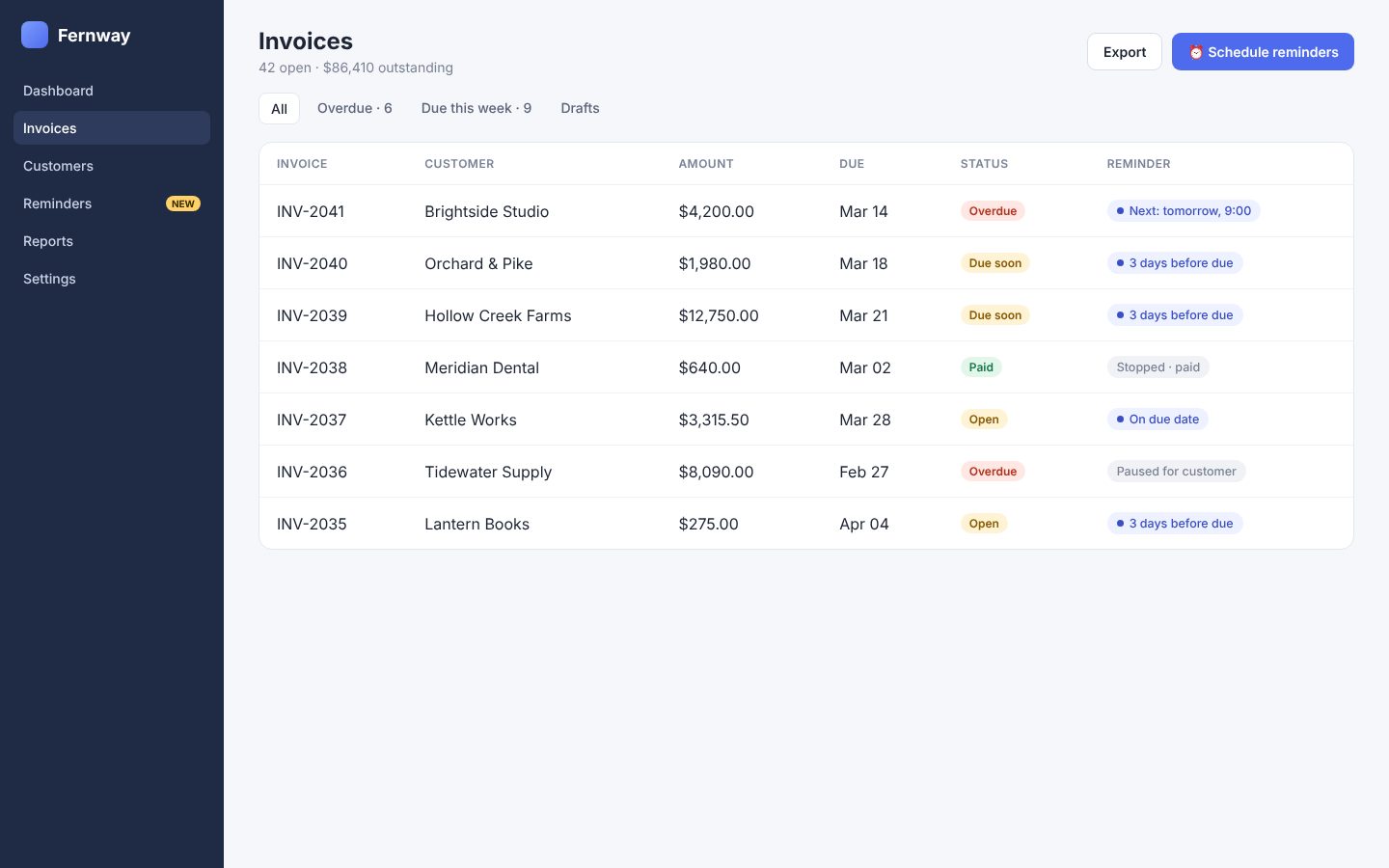
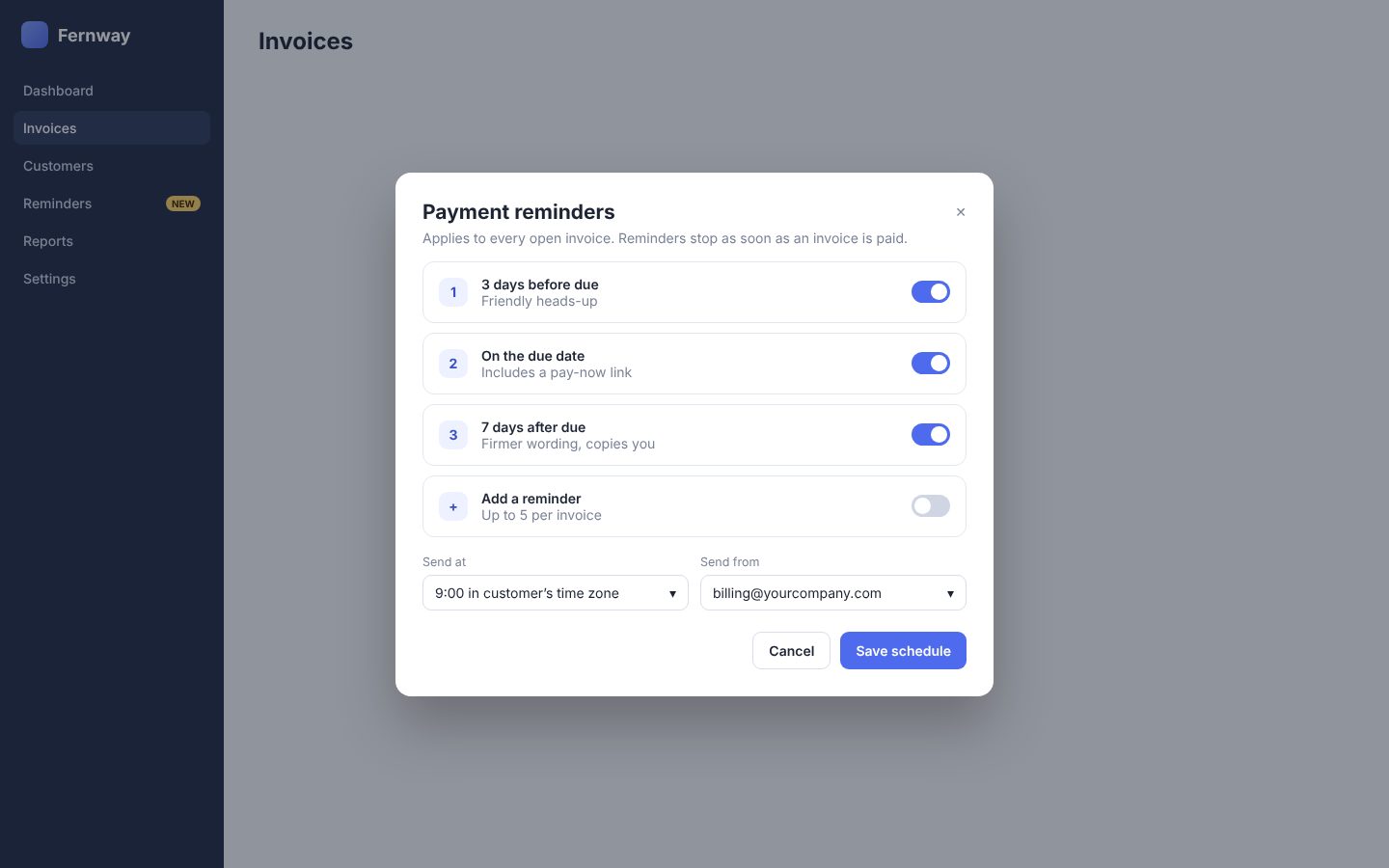
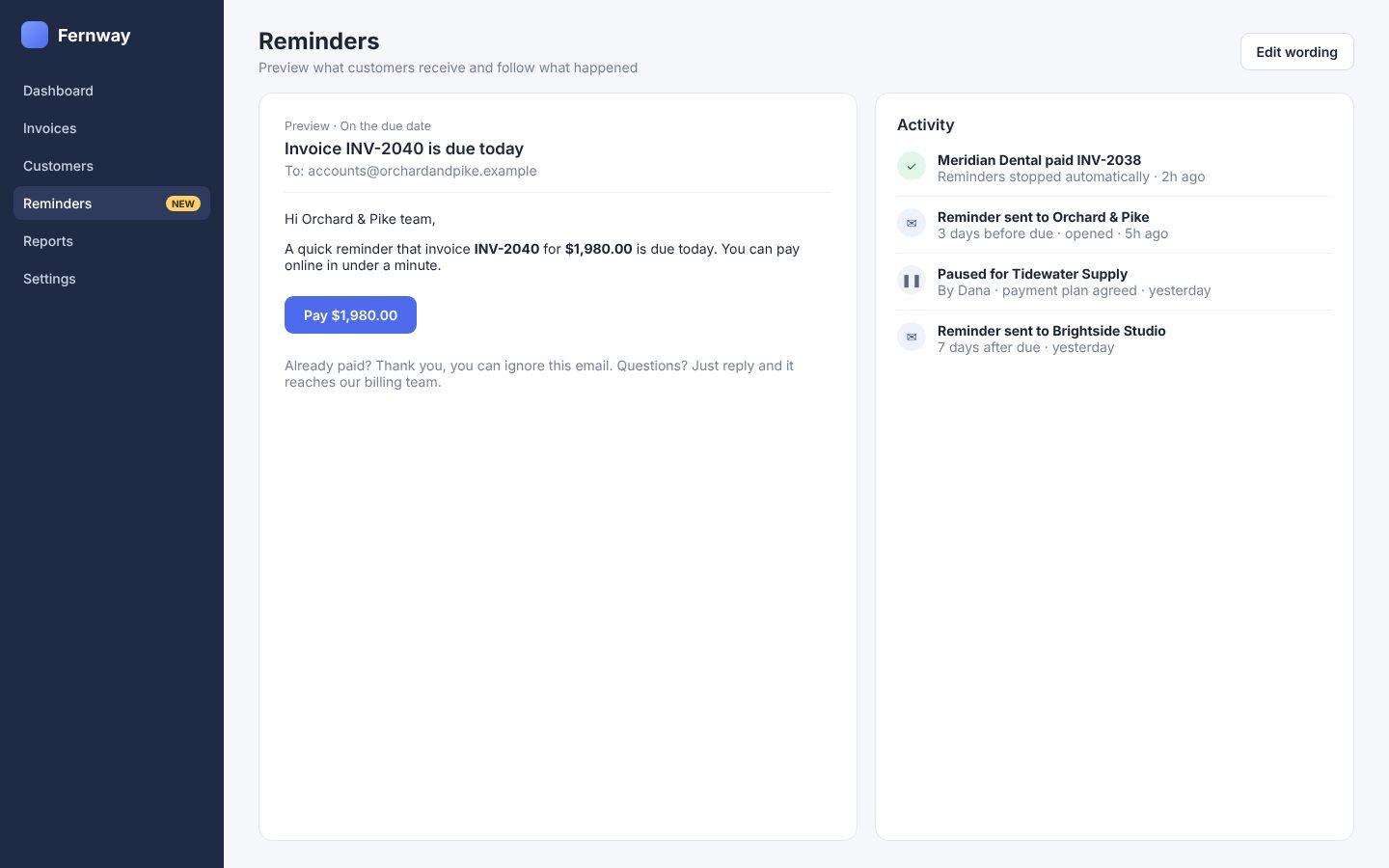
Product notes
Fernway now sends payment reminders on a schedule: before the due date, on it, and after. Available today on Team and Business plans. Reminders stop when an invoice is paid and can be paused per customer. Don’t promise SMS reminders; they are not part of this release.
What came out
A video, slides and written copy for each audience
Each audience gets its own cut of the same release: what it needs to know, in the form it will use. Choose an audience to see its outputs.
Customers
What’s new and how to use it
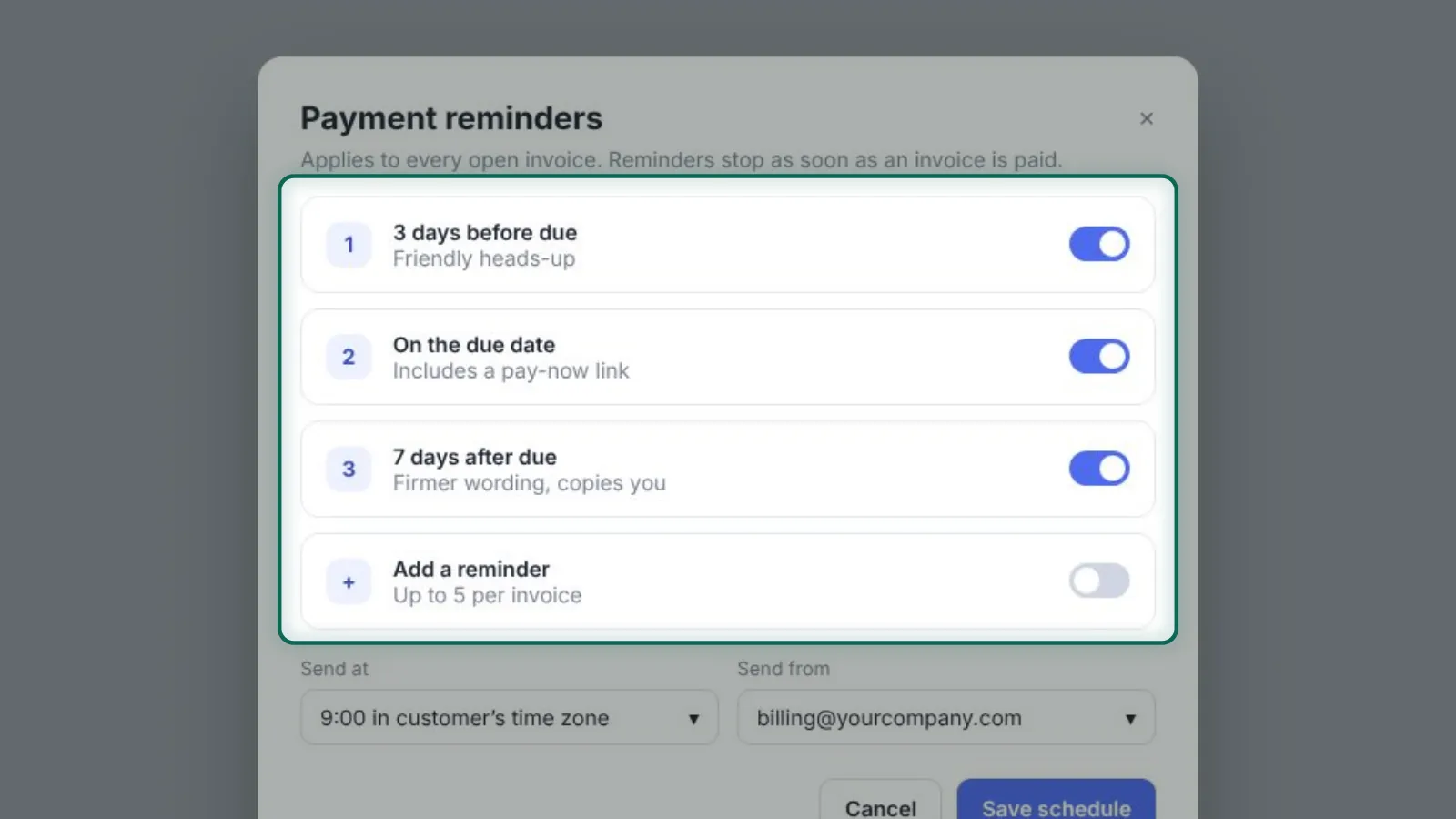
Narration for the announcement clip, scene by scene
- Chasing late invoices just got a lot quieter.
- Open Invoices and choose Schedule reminders. One setup covers every open invoice.
- Pick when reminders go out: before the due date, on the day, and after. Turn each one on or off.
- Customers get a short, friendly email with a pay-now link, sent from your own billing address.
- The moment an invoice is paid, its reminders stop on their own.
- Scheduled reminders are live today on Team and Business plans.
Written copy
Changelog post
Scheduled payment reminders
Fernway can now remind your customers about invoices on a schedule you choose: a few days before the due date, on the day, and after. Each email includes a pay-now link and comes from your billing address. Reminders stop automatically when an invoice is paid, and you can pause them for any customer. Available today on Team and Business plans.
In-app announcement
New: scheduled payment reminders
Set it once in Invoices and Fernway follows up for you.
Email blurb
Spend less time chasing payments. With scheduled reminders, Fernway emails customers before, on and after the due date, and stops as soon as they pay. Set it up in Invoices → Schedule reminders.
Customer Success
Setup, FAQs, and customer replies
Narration for the training walkthrough, scene by scene
- Here’s how scheduled reminders work and what customers will ask about.
- Admins set it up from Invoices, using the Schedule reminders button in the top right.
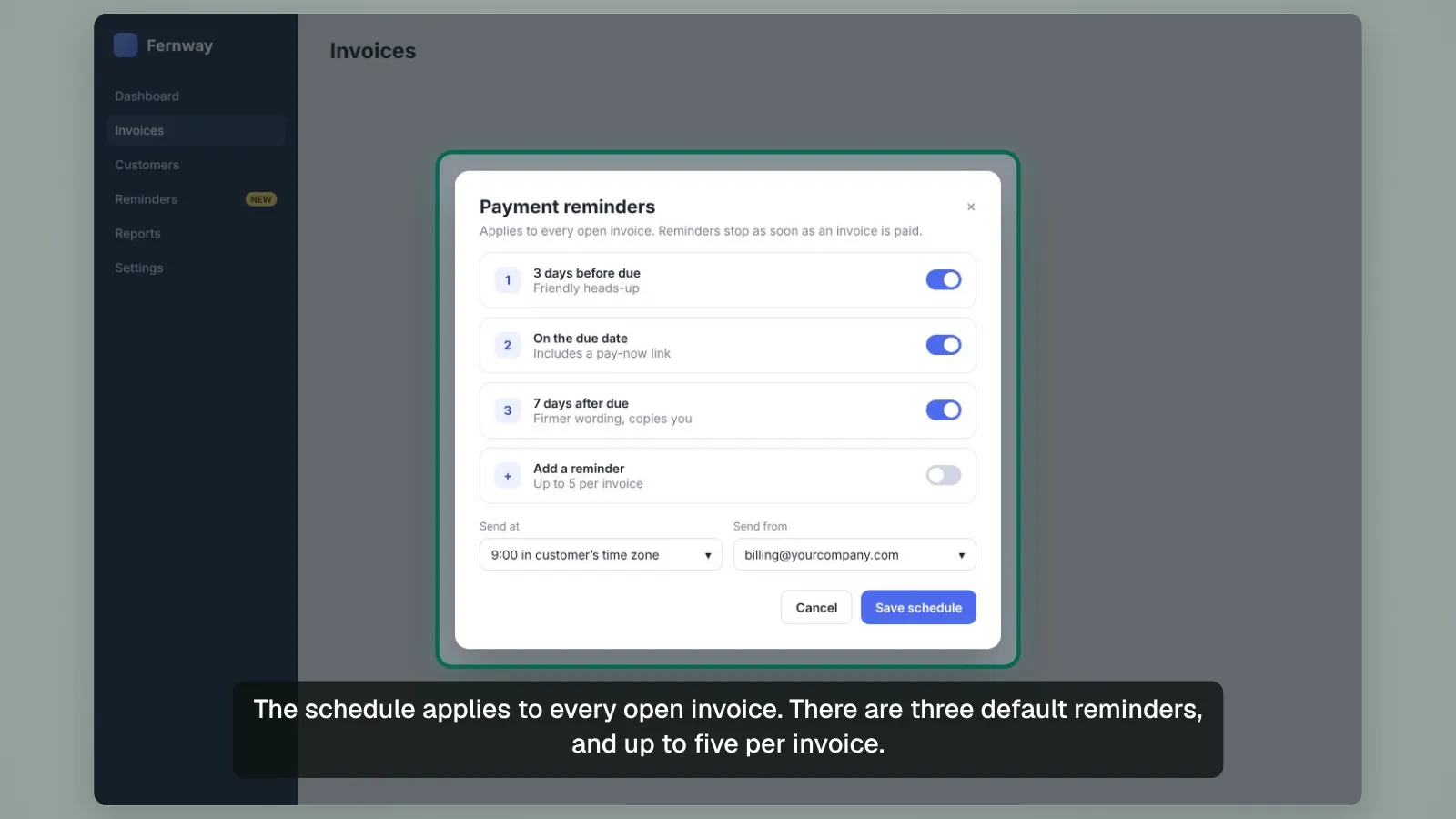
- The schedule applies to every open invoice. There are three default reminders, and up to five per invoice.
- Emails go out at nine in the customer’s time zone, from the billing address the admin picks.
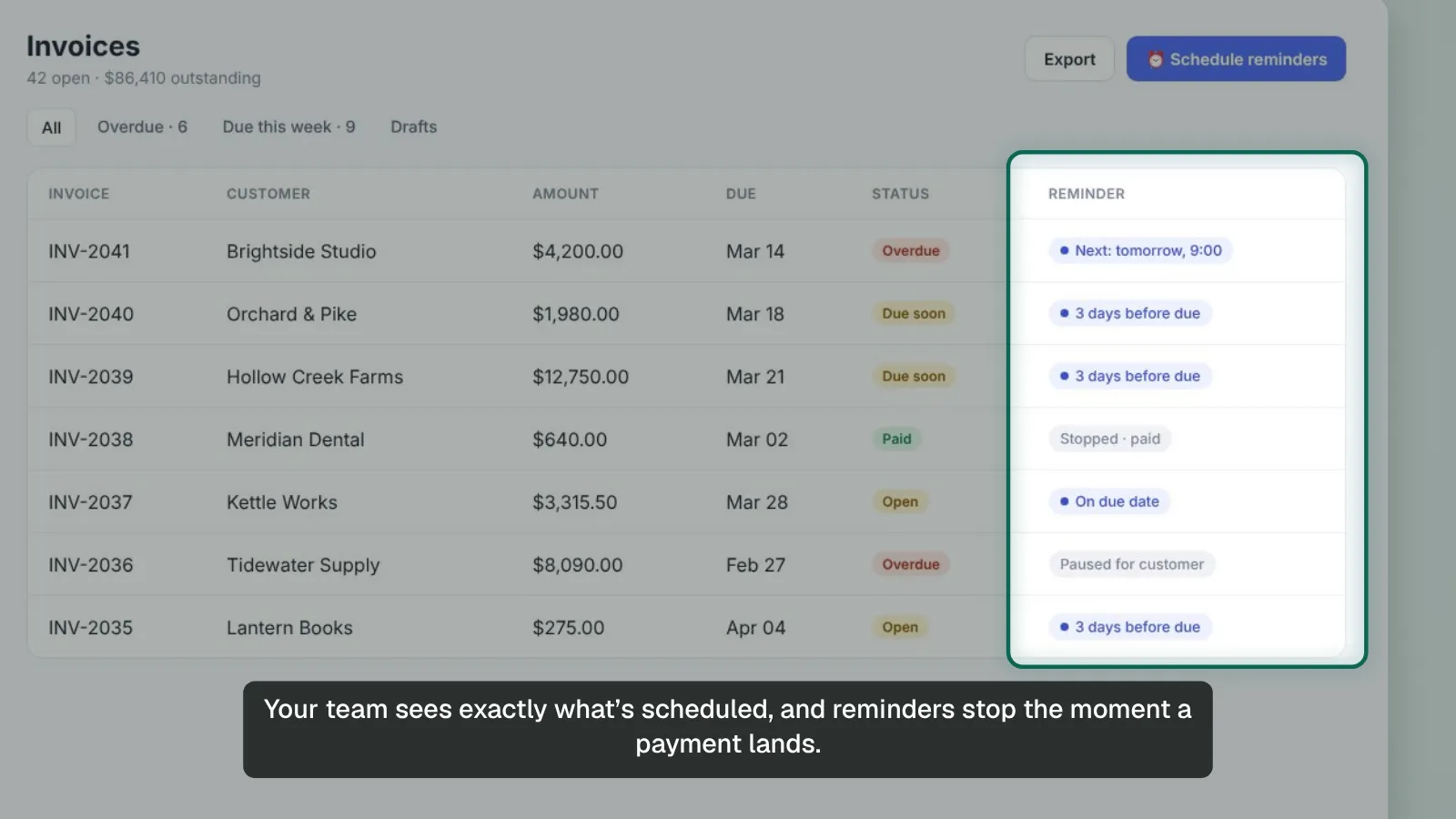
- The Reminder column shows the next send for each invoice, or why reminders stopped.
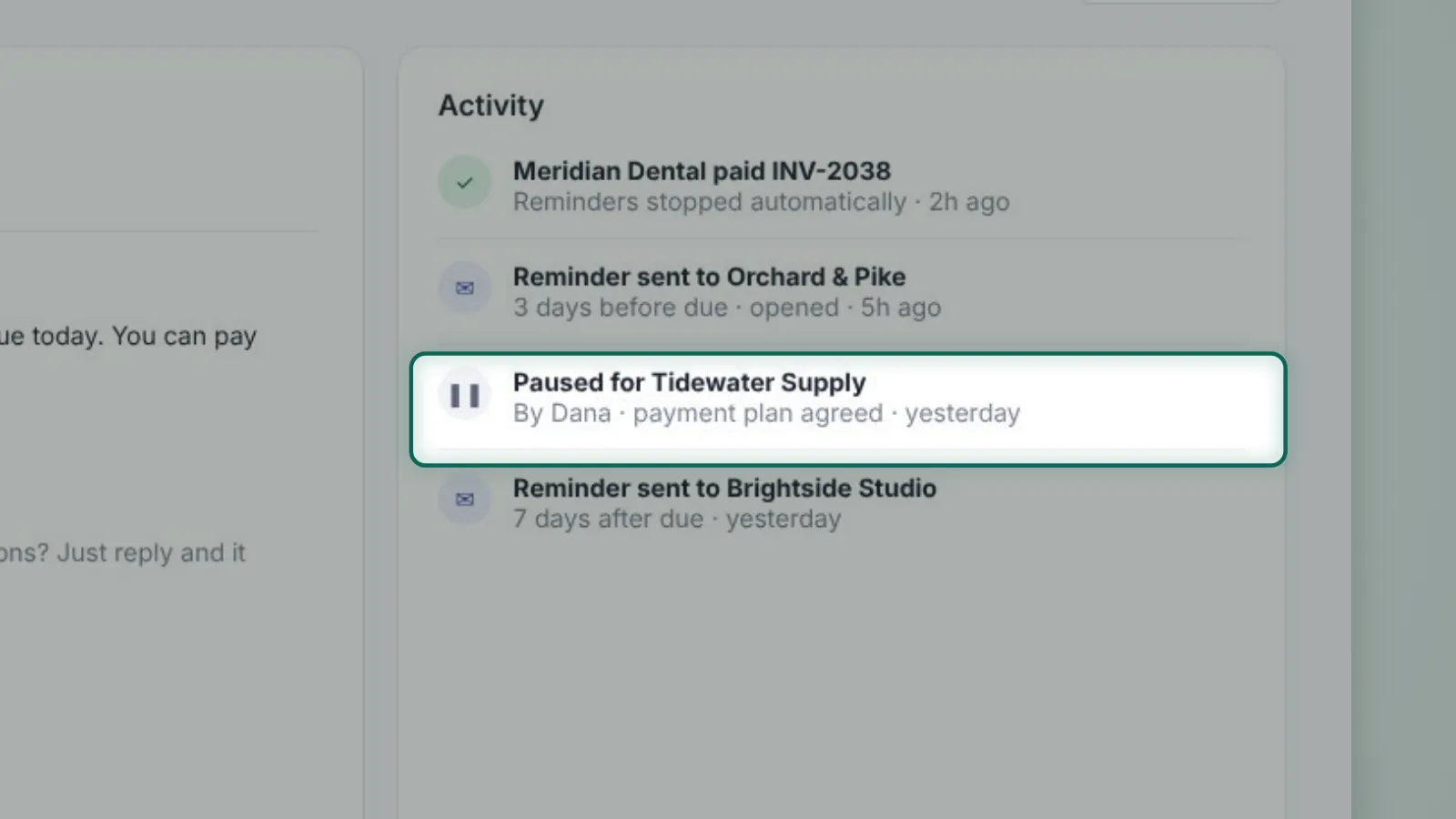
- If a customer agrees a payment plan, pause reminders for that customer. It shows in Activity with who paused it.
- Activity is the first place to check when a customer says they never got a reminder.
- One thing to be clear on: reminders are email only. SMS isn’t part of this release.
Written copy
What changed
- Reminders can be scheduled before, on and after the due date
- Up to five reminders per invoice; three are on by default
- Reminders stop automatically when an invoice is paid
- Admins can pause reminders for a single customer
- Email only. No SMS in this release
Likely questions
- Can I change the wording of the emails?
- Yes. Go to Reminders → Edit wording. Changes apply to the next reminder sent.
- Will customers who already paid get a reminder?
- No. Reminders stop as soon as Fernway records the payment.
- Can I turn reminders off for one customer?
- Yes. Pause them from the customer’s page. The pause shows in Activity with who set it.
- Do reminders go out by text message?
- Not today. Reminders are email only.
How to set it up
- Open Invoices and click Schedule reminders
- Turn on the reminders you want and set the send time
- Choose the address reminders are sent from
- Click Save schedule
Saved reply for customers
Good news: Fernway can now send payment reminders for you. Go to Invoices → Schedule reminders, choose when they go out, and save. They stop automatically once an invoice is paid, and you can pause them for any customer.
Sales
Value, demo steps, and objections
Narration for the demo cut, scene by scene
- Late invoices cost time, cash flow and awkward follow-up calls.
- With Fernway, you set your reminder schedule once and it runs on every open invoice.
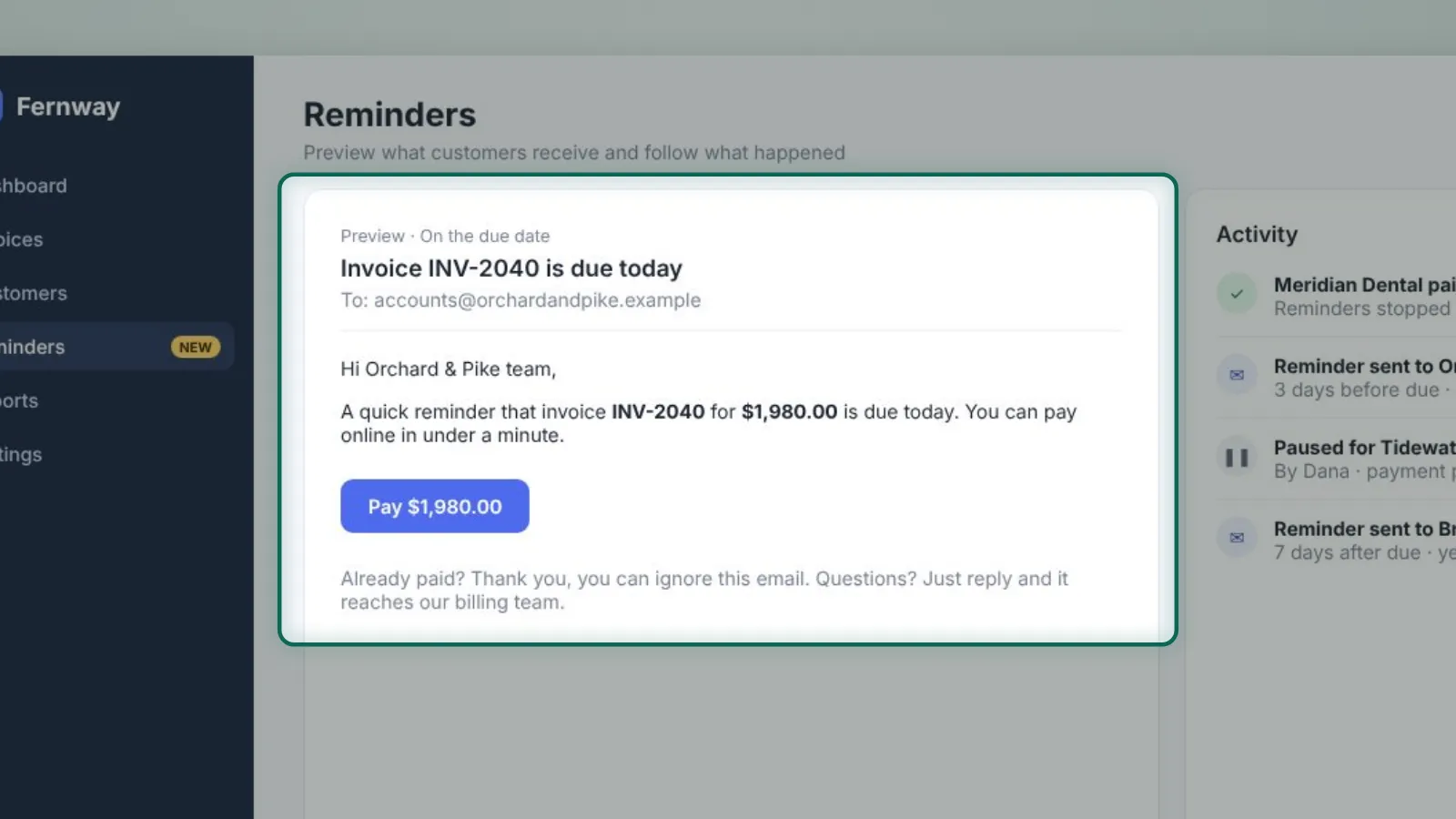
- Customers get a clear, polite email with a pay-now link. Paying takes under a minute.
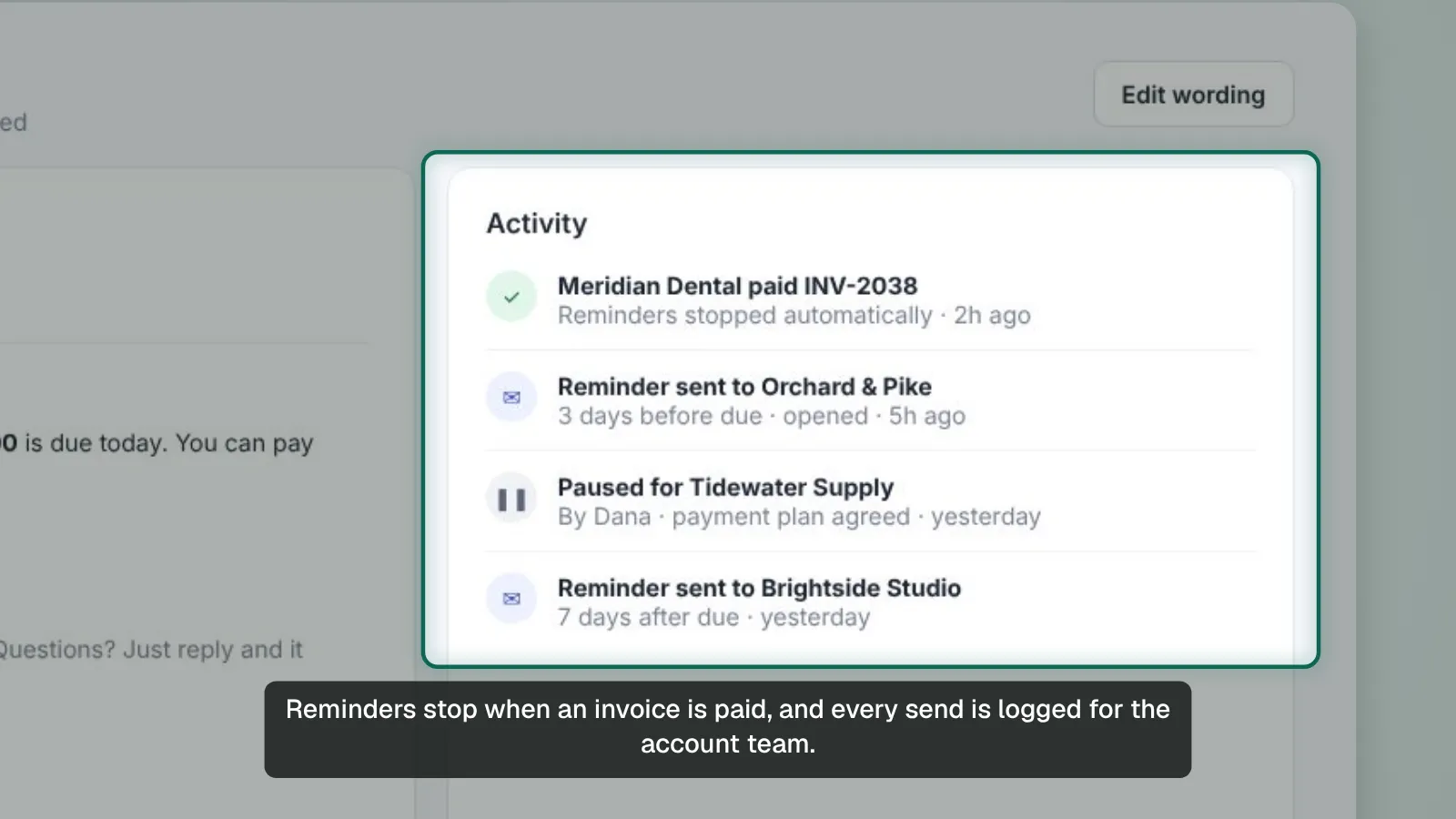
- Your team sees exactly what’s scheduled, and reminders stop the moment a payment lands.
- It’s live today on Team and Business plans. Happy to show it on your own invoices.
Written copy
One-line pitch
Fernway now follows up on unpaid invoices for you, on a schedule you set, and stops the moment you’re paid.
Demo talk track
- Start on Invoices and point to the overdue ones
- Open Schedule reminders and show the three default steps
- Show the email preview with the pay-now link
- Back on Invoices, show the Reminder column and “Stopped · paid”
Objections
- Won’t automatic reminders annoy our customers?
- You choose the timing and wording, and you can pause any customer, for example during a payment plan.
- We already send reminders by hand.
- This keeps your wording and timing but removes the manual follow-up, and it never emails someone who already paid.
- Can it text customers?
- Reminders are email only today.
Who to talk to first
- Accounts with many overdue invoices
- Teams that send reminders by hand today
- Customers on Starter who are close to upgrading
Leadership
Impact, summary, and what to watch
Narration for the exec summary, scene by scene
- We shipped scheduled payment reminders, live today on Team and Business.
- Customers set a schedule once, and Fernway follows up on every open invoice.
- Reminders stop when an invoice is paid, and every send is logged for the account team.
- Next, we’ll watch adoption, time to payment, and upgrade requests from Starter accounts.
Written copy
Summary
- Scheduled payment reminders are live on Team and Business plans
- Reminders run before, on and after the due date, and stop on payment
- Email only in this release; SMS is not included
Why it matters
Following up on unpaid invoices is one of the most manual jobs our customers do. Automating it makes Fernway part of how they get paid, not only how they invoice, and gives Starter accounts a concrete reason to upgrade.
What we will watch
- Share of Team and Business accounts with a schedule turned on
- Change in days to payment for invoices with reminders
- Upgrade requests that mention reminders
Make this for your own release
Everything above can be edited in the app: narration lines, titles, what each scene zooms to, and the written copy. Download the video as MP4 and the slides as PowerPoint with speaker notes, or copy the written pieces as Markdown. Free to start.